Cloud
Set Up a Billing Alarm on Amazon AWS CloudWatch
Step-by-step guide to creating a billing alarm in AWS CloudWatch so you get notified when your bill exceeds a threshold, plus free tier usage alerts.
A lot of people when they sign up using the AWS free tier are amazed by the quantity of services out there, which can be overwhelming. Setting up a billing alarm is a must so that if you end up leaving resources running accidentally, you don't get charged too much.
Create a Billing Alarm#
As we mentioned, we don't want to run up the bill accidentally, so we're going to create a billing alarm now to make sure that doesn't happen. We will be sticking to the free tier. Even if you are not in the free tier, you should also set up a billing alarm.
Enable billing preferences#
Log in to the AWS console as root, then search for Billing and click on it. In the bottom left, you will see Billing preferences—click on it, then check:
- Receive Free Tier Usage Alerts
- Receive Billing Alerts
Put your email, then click on Save preferences.
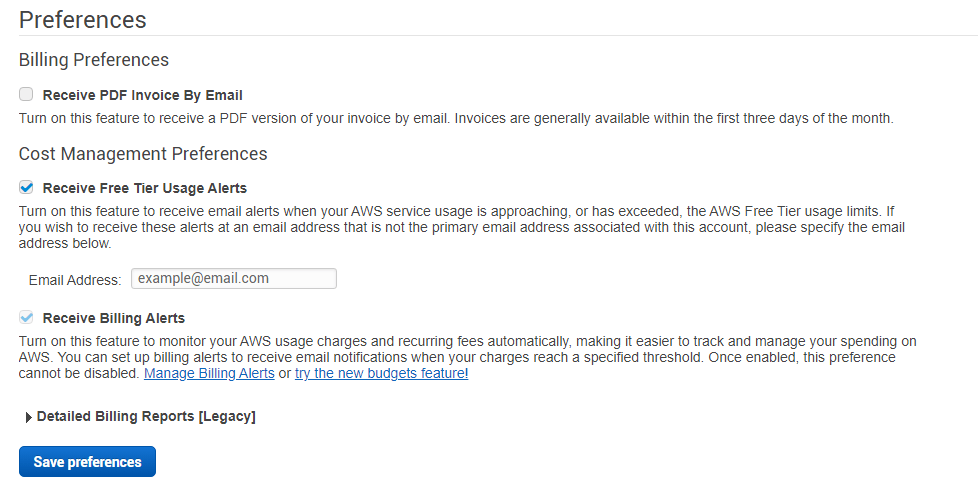
Now if we reach the free tier limit we'll receive an email. But another thing we can do is specify a threshold to receive an alert.
Create the alarm in CloudWatch#
Now go to the main AWS console page and search for a service called CloudWatch.
CloudWatch is a performance monitoring tool. It monitors your services using what are called metrics—information sent to CloudWatch that tells it how much you're using. That's why you can look at the performance of your applications, and you can also use it to monitor how much you're going to spend on your resources.
What we'll do now is create an alarm that will be triggered when your metrics reach a certain threshold.
For anything related to billing we need to change the region—for billing you must use US East (N. Virginia).
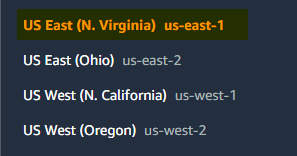
Now we are in the right region. You can go to the left and choose Alarms.
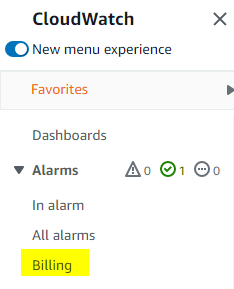
Then Create alarm:

Then Select metric > Billing > Total Estimated Charge, choose USD, then click on Select metric. Then choose these values:
- Threshold type: Static
- Greater than: Enter the max amount of money (e.g. I chose $5—if my bill reaches $5 I'll get notifications). Choose a number you're comfortable with, then hit
Next.
For Alarm state trigger, we choose In alarm.
We're going to use a service called SNS to notify you via different transport protocols, one of them being email.
Select Create new topic, enter a Topic name (e.g. Billing_Notification), type your email, then Create topic.
You can view that in the SNS console by clicking on it. We can see that we have the billing notification configured. You'll notice the subscription is pending confirmation—go to your email client, find the message, and confirm the subscription. After that, go back to the alarm and hit Next.
In Alarm name I will call it Billing_Alarm. Click Next, then you will see the graph. Go to the bottom of the page and click Create alarm, and that's it—we're done.
Related posts
Set Up and Configure Apache, MySQL, and phpMyAdmin (LAMP Stack) on Ubuntu 20.04
Install and configure a LAMP stack on Ubuntu 20.04: Apache, MySQL, PHP, and phpMyAdmin, including firewall rules and MySQL authentication.
Jun 10, 2021 · 4 min read
Important Configurations and Settings When You Launch Your Cloud Server
How to securely configure a new Linux cloud server: create a user, SSH key-based auth, disable password and root login, and set up UFW firewall.
Jun 3, 2021 · 5 min read